What should I check first?
Compare your PC with the Steam minimum and recommended rows, leave enough storage for updates, and launch the same platform version as your teammates. The Steam listing covers Windows and macOS support; check the live listing for later changes.
🖥️ Setup cue: verify the platform, controller, audio, and storage before inviting the team.
How do I test a controller?
Connect it before launching, verify menu navigation, then complete one low-risk input in a puzzle. Check confirm, cancel, shoulder buttons, and directional input before inviting a team.
Use the multiplayer guide for room and voice checks.
What does the Steam specification say?
The Steam specification lists Windows 10/11 64-bit, an i3-6100 or Ryzen 3 1200 minimum CPU, 8 GB RAM, Intel HD 520 or Radeon Vega 3 graphics, and 300 MB of storage. The recommended row moves to an i5-8400 or Ryzen 5 2600, 16 GB RAM, and Intel Iris Xe, GTX 1050, or RX 560. It also includes macOS requirements and marks Linux as unsupported in the checked listing.
What should be tested with a controller?
Steam lists full controller support, including Steam Input, DualShock, and DualSense categories. Test menu navigation, confirm, cancel, shoulder buttons, and directional input before inviting the other two players. A controller that works in the menu but misses a puzzle input should be treated as a session risk until tested in one low-stakes module.
Pre-session compatibility checklist
Run this check before creating a room:
| Check | Pass condition | If it fails |
|---|---|---|
| Game build | Everyone launches the same current Steam build | Restart Steam and verify the update queue |
| Display | Text, symbols, and colour indicators are readable | Increase display scale or move closer to the screen |
| Input | Confirm, cancel, directional, and shoulder inputs register | Rebind or test another controller |
| Voice | All three players can hear the interpreter clearly | Use a separate voice channel and keep callouts short |
| Room join | Each player can enter the host room before starting | Recreate the room and share the code again |
The minimum specification is not a promise that every setup will feel comfortable. Low-resolution displays, unstable audio, or input delay can make a correct clue look incorrect. Test the exact computer, controller, and voice setup that will be used for the session.
For role-specific input checks, compare the Role Quick Reference with the Team Setup tool before inviting the third player. If the group is testing a new module, use the Module Solver only after the controller and display pass the basic preflight.
Which requirements should be rechecked later?
Steam data can change with patches and platform updates. Recheck the live store page for operating-system support, storage, controller labels, and any demo or platform change before publishing a dated requirements statement. Keep the checked values as a dated reference, and link readers to the current listing for the final decision.
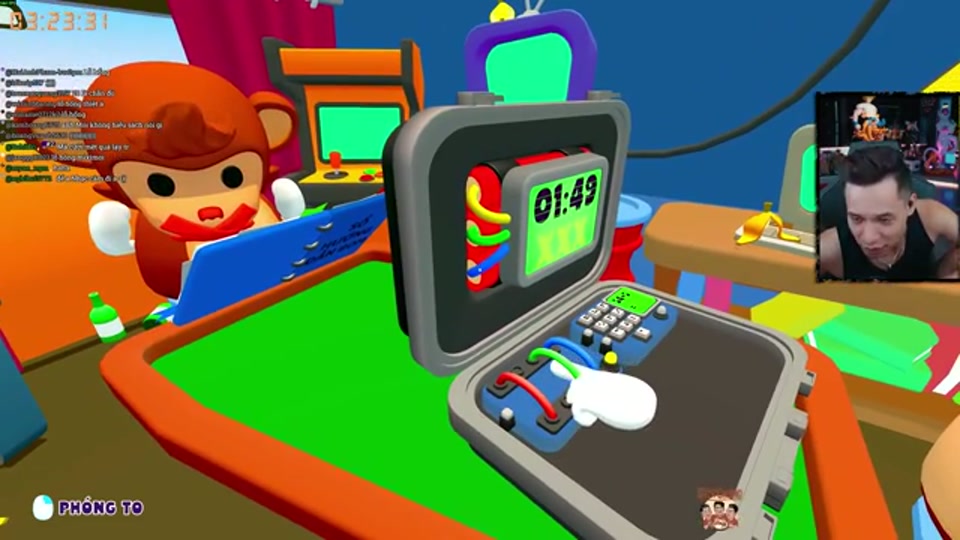
Before you launch
The store listing is the right place to confirm the current minimum and recommended requirements, supported input devices, and multiplayer notes. Treat this page as a preflight checklist: update Steam, test the microphone, confirm everyone can join the same lobby, and open the manual before starting a timed run.
Practical performance checks
- Run one short campaign level before attempting Endless.
- Test voice volume with all three roles assigned.
- Keep the game and manual visible on the displays each player actually uses.
- If a player experiences stutter, lower visual settings before changing the team’s callout rhythm.